Last updated
Get Smart TV Privacy Kit ($19)How to Turn Off Ads and Tracking on Your Smart TV, Brand by Brand
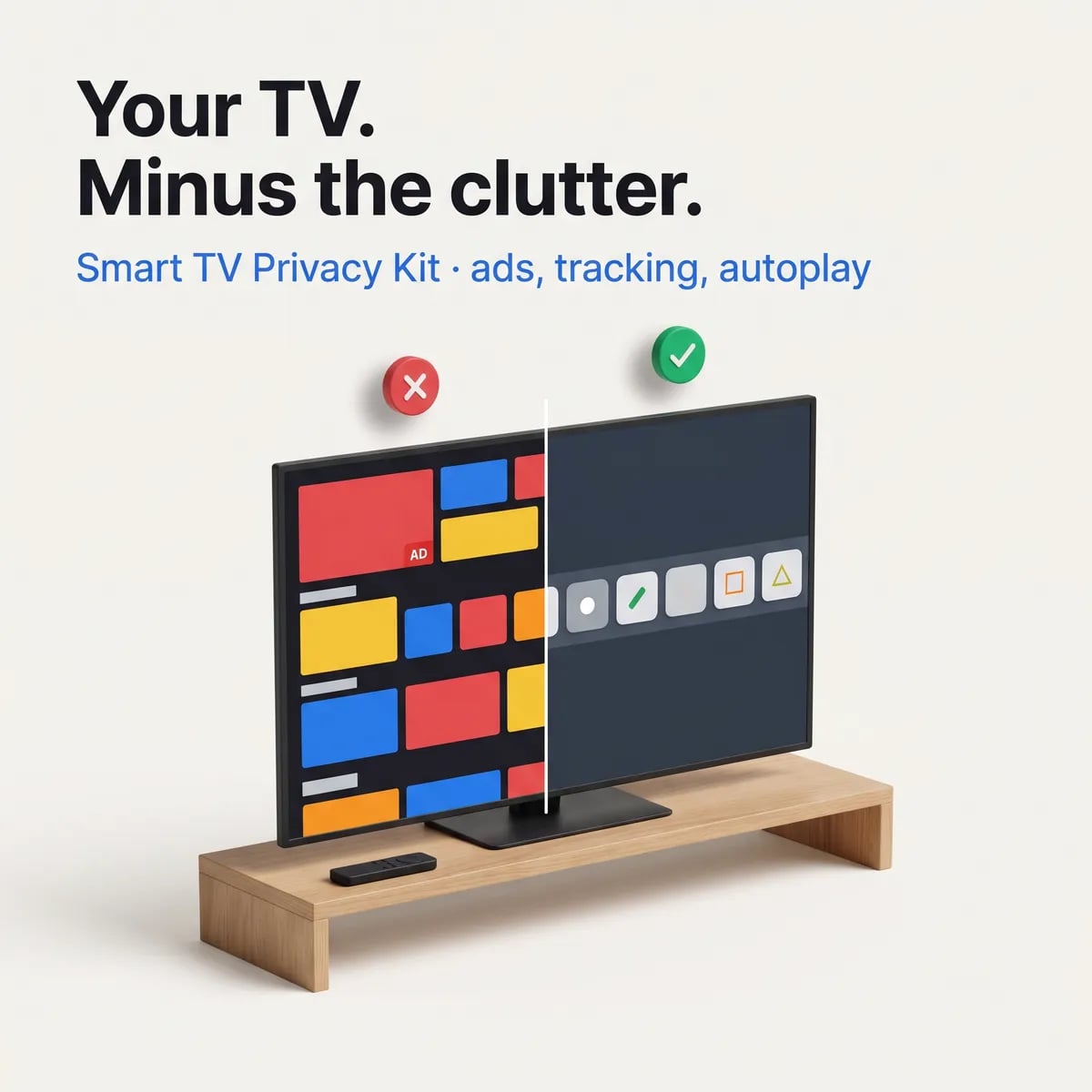
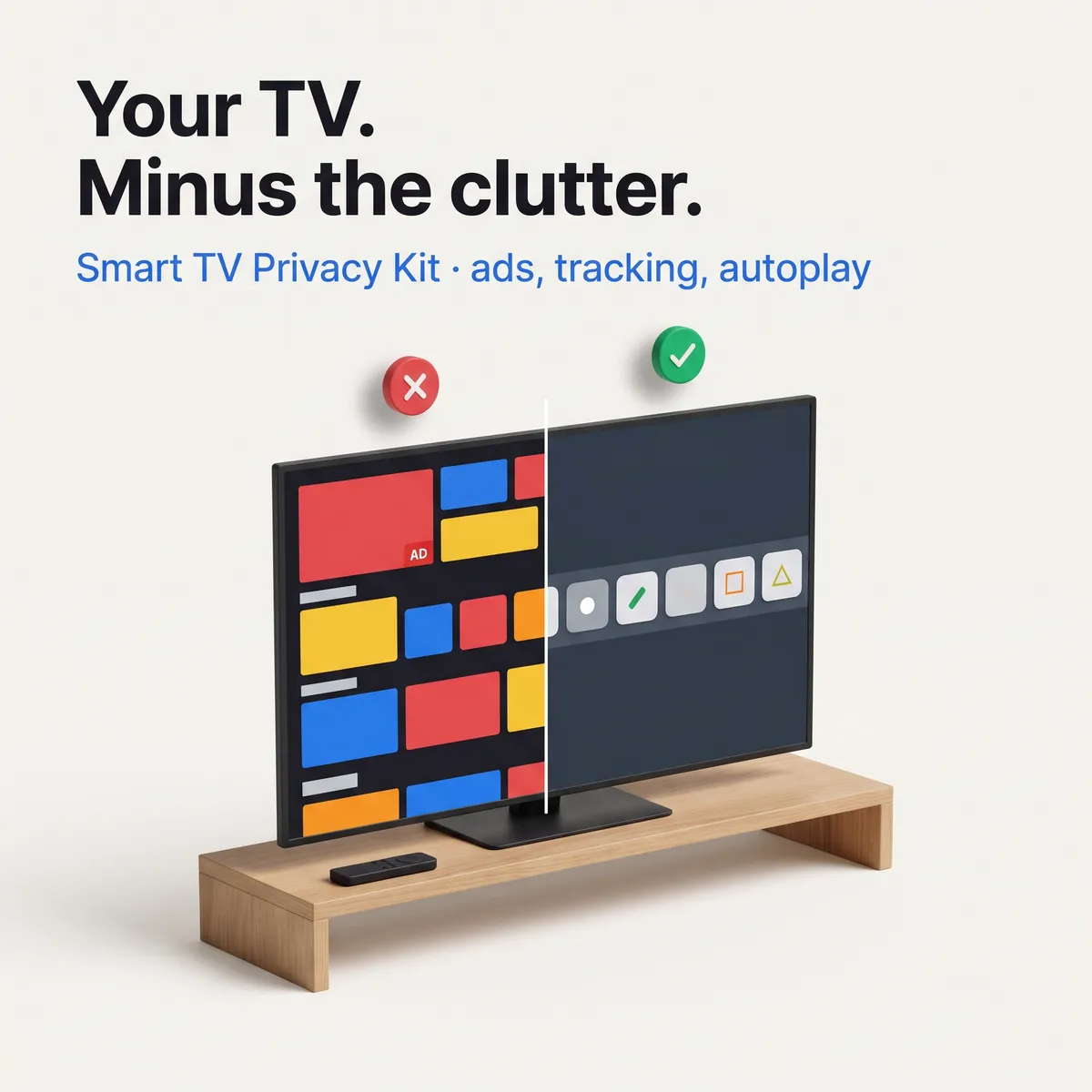
Most smart TVs show ads on the home screen and many can recognize what is on your screen, a feature called ACR. You can switch a lot of it off from the normal settings menu with the remote, but every brand hides the switches somewhere different. This page shows where they are on the seven most common TV systems, and which ads no setting can remove.
Why does my smart TV show ads and track what I watch?
Your smart TV shows ads because the home screen itself carries banners, sponsored rows and trailers that play by themselves. Separately, many TVs have automatic content recognition (ACR), which identifies what is on the screen, in some cases even from a cable box or game console, and can feed that into the ads you see.
Here is what makes it annoying to fix:
- Every brand uses a different name. Samsung calls it Viewing Information Services, LG calls it Live Plus, Vizio calls it Viewing Data, and Roku TVs call it Use info from TV inputs.
- The switches are in different menus. Some sit under Privacy, some under Support, some under General.
- Your brand and your system are not the same thing. A Sony or TCL TV can run Google TV, and a Hisense can run Google TV, Roku, Fire TV or its own system.
- Updates can switch things back on. A big update may reset some of what you changed.
In March 2026, Malwarebytes published how to switch off ACR across the main brands, and the menu paths below follow the same sources the kit uses.
How to turn off ads and tracking on a smart TV by hand, step by step
To turn off ads and tracking on a smart TV by hand, find out which system it runs, then switch off viewing data, ad personalization and autoplay in that system's settings. Each step uses only the remote and can be switched back.
- Find your TV system. Press Home. A Google account icon in the top right usually means Google TV; a clock or gear means Android TV. "fire tv" or "Roku" on the start-up screen settles those. Then confirm under Settings, About.
- Turn off the viewing-data feature. This is the ACR switch, and it has a different name on each brand (table below).
- Turn off ad personalization. Look for Interest-Based Advertising, Personalize ads, or Delete advertising ID. You still see ads, but they are less about you.
- Turn off autoplay. Trailers and previews that start by themselves usually sit under Home screen, Featured Content or Accessibility.
- Hide rows you never use. Most systems let you switch off app rows or store rows on the home screen.
- Write down what you changed. If something you use stops working, you know which switch to turn back on.
- Check again after a big update. Two minutes with the same list catches anything that turned back on.
Where the tracking switch lives on each TV
| TV system | Tracking switch | Ads less personal |
|---|---|---|
| Samsung | Settings > Support > Terms & Privacy > Privacy Choices > Viewing Information Services | Interest-Based Advertising, same menu |
| LG | All Settings > General > System > Additional Settings > Live Plus | Home Settings: Home Promotion and Content Recommendation |
| Vizio | Menu > System > Reset & Admin > Viewing Data | Check the rest of Reset & Admin for an ad switch |
| Roku TV | Settings > Privacy > Smart TV Experience > Use info from TV inputs | Settings > Privacy > Advertising > Personalize ads |
| Fire TV | Preferences > Privacy Settings > Device Usage Data, Collect App Usage Data | Interest-based Ads, same menu |
| Google TV | Sony only: Privacy > Samba Interactive TV | Settings > Privacy > Ads > Delete advertising ID |
Menu paths checked October 2026 against sources such as LG's own Home Promotion help page. Names change by model and year, so if a label is slightly different on your screen, pick the closest match.
What no setting removes
Be clear about this before you start. Ads inside Netflix, Prime Video or Hulu plans with ads, and on free YouTube, come from the app. Google says ads on Google TV cannot be turned off, only made less personal. Samsung, Roku and Vizio keep ads on their home screens, and LG Channels stays on LG TVs. Vizio also says turning off Viewing Data does not stop separate activity data from its home screen.
The faster way: Smart TV Privacy Kit
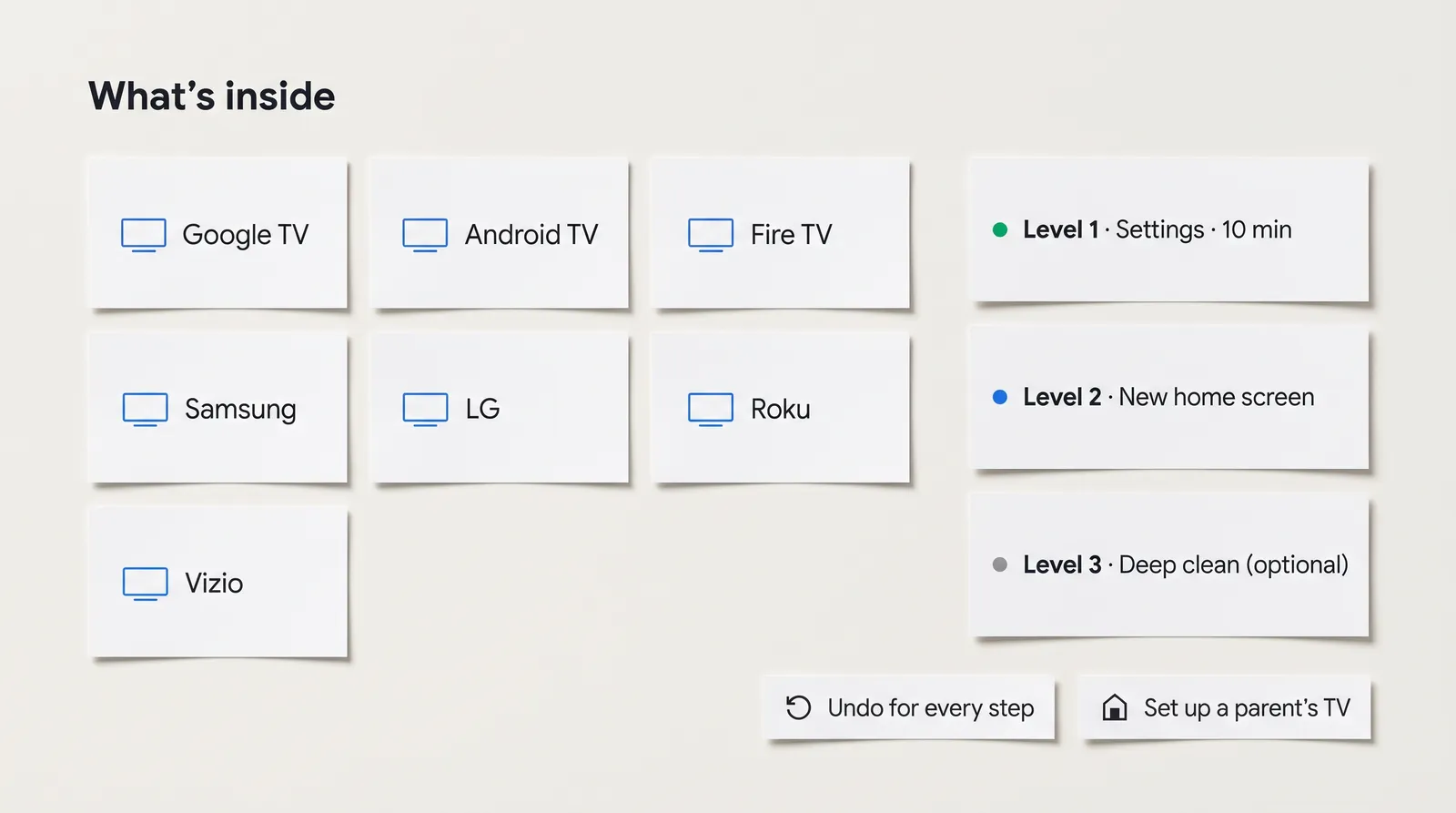
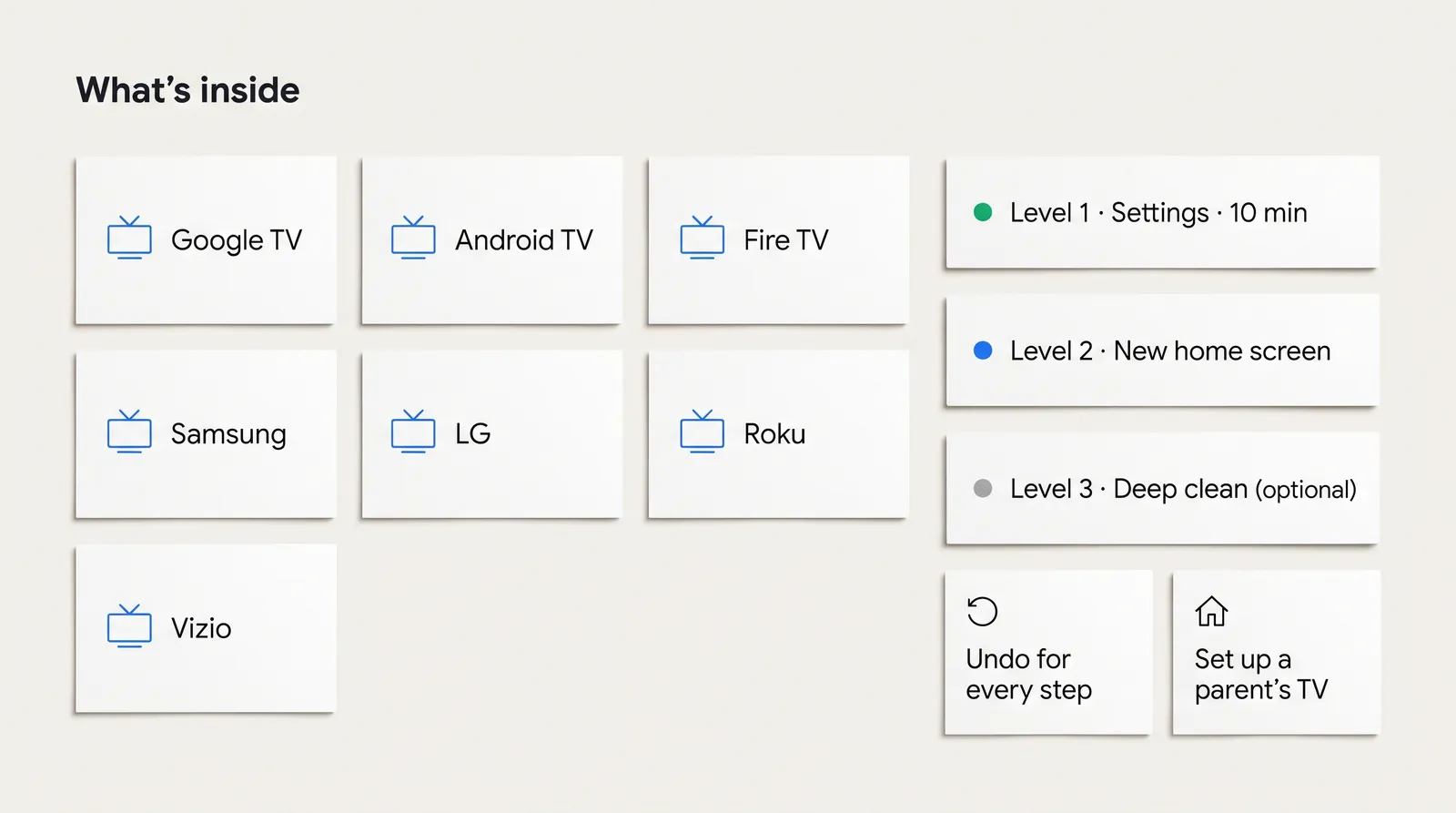
The faster way is to open one file for your TV and go down the list. Smart TV Privacy Kit is a set of PDFs I put together for that: a page of switches for each of seven TV systems, an undo card, and a 5-minute check for after updates.
Here is how it was made. The menu paths come from manufacturer support pages and recent reviews, every page lists its sources, and all of them were checked in October 2026. Then I tested the steps on real TVs, including my friends' sets at home, and they work. Menus still differ by model and year, so each page says where to look if a label on your screen is slightly different.
How to use it, step by step
- Buy and download. Gumroad sends the zip right after payment.
- Open 00-START-HERE. It asks what TV system you have, whether you want a new home screen, and whether you have a computer with an AI coding assistant.
- Not sure of your system? The find-your-TV page takes about 30 seconds and tells Fire OS from Vega OS, which matters on newer Fire TV Sticks.
- Print the undo card. Keep it next to the TV before you change anything.
- Do Level 1 for your TV. About 10 minutes with the remote (about 5 on a Vizio). It is the whole job on Samsung, LG, Roku, Vizio and Vega OS Fire TV Sticks.
- Want a cleaner home screen? On Google TV and Android TV, the Projectivy path swaps the home screen with the remote only, in about 15 minutes. With an Android phone, the phone path switches off more clutter.
- Skip Level 3 unless you want it. It needs a computer, an AI coding assistant and about 45 minutes, and it carries more risk. The prompt only switches apps off, in batches of 3 to 5, after saving a before list and an undo file.
- Tick the checklist. After any update you notice, run the 5-minute check.
Setting up a parent's TV
One file is for doing this at someone else's home. It plans a 20-minute visit: write down the apps they actually use, do Level 1, set up the simple home screen only on a Google TV or Android TV, and show them the Home button. It also has a script to read out over the phone, line by line, for when you cannot be there. It tells you to skip Level 3 on a parent's TV, because if something goes wrong you are not there to fix it.
What it does not do
It does not remove ads inside streaming apps, and it does not include or recommend apps that skip them. It does not replace the home screen on Samsung, LG, Roku, Vizio or Vega OS Fire TV Sticks. Some switches may come back after an update, which is why the after-update check exists. The kit is not made by or connected to any TV maker; brand names only show which TV a step is for. If you want to know who is behind it, my about page lists what I have shipped and what failed, and the products page shows the other kits.
// what it looks like
Inside Smart TV Privacy Kit



Want every switch for your TV on one printable page, with an undo step for each? Smart TV Privacy Kit covers 7 TV systems.
Get Smart TV Privacy Kit, $19 one-time// side by side
By hand vs a generic AI prompt vs Smart TV Privacy Kit
None of the three routes removes ads inside Netflix, Prime Video or free YouTube. Those come from the app. What changes is how many switches you find, whether you know how to undo them, and whether you can go past Level 1 on a Google TV, Android TV or Fire TV.
| Criterion | By hand | Generic AI prompt | Smart TV Privacy Kit |
|---|---|---|---|
| Brands covered | One article per brand, if you find it | Whatever the chatbot remembers, often an older menu | Google TV, Android TV, Fire TV, Samsung, LG, Roku and Vizio |
| Menu paths | Depends on how recent the article is | Can name settings that do not exist on your model | Checked October 2026 and tested on real TVs, with sources on each page |
| Undo | You retrace your steps from memory | Only if you ask | An undo card for every path, including the home screen swaps |
| A new home screen | Forum threads, mostly for one device | Often jumps straight to ADB commands | A remote-only path and an Android phone path for Google TV, Android TV and Fire OS |
| Warning screens | You guess whether to press OK | You describe the screen and hope | A page that explains each warning and what to press |
| Cost | Free, plus an evening of searching | Free or your existing AI plan | $19 once |
// in the download
What is inside Smart TV Privacy Kit
Smart TV Privacy Kit is a folder of 23 PDFs plus one prompt file, set in 14-point type. It starts with three questions that send you to the right file for your TV, and every path has a matching undo step.
- A start-here page with 3 questions that sends you to the right file
- A find-your-TV page: tell Google TV from Android TV, and Fire OS from Vega OS, in about 30 seconds
- Level 1 settings pages for Google TV, Android TV, Fire TV, Samsung, LG, Roku and Vizio, about 10 minutes each with the remote
- Level 2 home screen paths: Projectivy Launcher with the remote only, or the free Clean Your TV app from an Android phone
- A brand-by-brand page for turning on developer options, and turning debugging off again when you finish
- An optional Level 3 prompt for Claude Code or Codex that only switches apps off, never uninstalls, in batches of 3 to 5
- An undo card, a scary screens guide and a 5-minute check to run after a TV update
- A 20-minute plan for setting up a parent's TV, a phone script, and a printable checklist
- A 64-page complete guide with every file in one PDF
What you do not get
- No way to remove ads inside Netflix, Prime Video, Hulu or free YouTube. Those ads come from the app.
- No app or file from other developers. The kit links to the official pages for Projectivy and Clean Your TV.
- No home screen swap on Samsung, LG, Roku, Vizio or Vega OS Fire TV Sticks. Level 1 is the whole job there.
Who Smart TV Privacy Kit is for, and who should skip it
This fits people who want fewer home screen ads and less viewing-data tracking without learning developer tools, and anyone setting up a parent's TV. It does not fit someone hoping to remove ads inside streaming apps, because no TV setting can do that.
It is for you if
- You want trailers to stop playing on the home screen and the suggestion rows to shrink.
- You read that your TV can recognize what is on screen and want that switched off.
- You are nervous about breaking the TV and want an undo step for every change.
- You set up the TVs at your parents' place and want one guide that covers every brand there.
It is not for you if
- You want to block ads inside streaming apps. No TV setting does that, and the kit does not try.
- You want a guarantee that every menu matches your model. Menus change with updates and the kit says so.
- Your TV runs China-market firmware. Those menus are not covered.
// frequently asked
Questions buyers ask
- How do I turn off ads on my smart TV?
- You can reduce them, not remove all of them. Turn off ad personalization and autoplay in Settings, and on LG turn off Home Promotion. Google says ads on Google TV cannot be fully turned off, and Samsung, Roku and Vizio keep ads on their home screens. On Google TV, Android TV and Fire OS, a different home screen app removes most of the clutter.
- What is ACR on a smart TV?
- ACR stands for automatic content recognition. The TV identifies what is on your screen, in some cases even from a cable box or game console, and that data can be used for ads. Each brand names it differently: Viewing Information Services on Samsung, Live Plus on LG, Viewing Data on Vizio, and Use info from TV inputs on Roku TVs.
- How do I turn off ACR on a Samsung TV?
- Press Home, then go to Settings, Support, Terms & Privacy, Privacy Choices, and turn off Viewing Information Services. On some models the path starts with All Settings, then General & Privacy. While you are there, turn off Interest-Based Advertising too.
- How do I turn off Live Plus on an LG TV?
- Press the Settings button, choose All Settings, then General, System, Additional Settings, and turn off Live Plus. On older LG TVs it sits directly under All Settings, then General. In Home Settings you can also turn off Home Promotion and Content Recommendation.
- Can I stop my Roku from tracking what I watch?
- Partly. On a Roku TV, go to Settings, Privacy, Smart TV Experience and turn off Use info from TV inputs. Then go to Settings, Privacy, Advertising, turn off Personalize ads and reset the advertising ID. Roku sticks and boxes do not have the Smart TV Experience menu, and Roku still shows ads on its home screen.
- Do the settings come back after a TV update?
- They can. Some owners report privacy switches turning back on after an update, and on Android-based TVs switched-off apps can return. TV makers do not confirm this, so a quick check after any update you notice, or once a month, is the safe habit.
- Will changing these settings break my TV?
- Level 1 uses only the normal settings menu, so you can switch everything back on. Some smart features can stop if you turn off every user agreement on an LG TV; turn that one back on if so. The home screen paths and Level 3 carry more risk, and changing TV software may affect the warranty.
- Is Smart TV Privacy Kit a one-time payment?
- Yes, $19 once, for one TV. Gumroad also sells a Family edition with the same files for up to 3 TVs in your household or close family. Kit updates come free through the same download link.
Get Smart TV Privacy Kit
Smart TV Privacy Kit costs $19 as a one-time payment. You get an instant download, lifetime access to every v1 update, and no subscription.
// next problem
Related problems
- How to translate visa documents before your appointment
Another plain, one-job kit that is honest about what it cannot do, built for people sorting out paperwork at home.
- How to use AI on client files without a cloud AI service
The same idea at work: keep private files on your own computer instead of someone else's servers.
// Also on this topic
- guideThe AI agent's report looks perfect. Should you trust it before you act?
Agent reports sound sure and are often wrong both ways. Why it happens, where invented facts hide, and a three-step check before you fix anything.
- guideHow to make Claude Code ask before it changes your files
New Claude Code sessions start in auto mode and don't ask. The six modes in one table, how to make Manual your default, and the locks no mode can skip.
- free toolllms.txt generator
A spec-valid llms.txt built in the browser, validated as you type.
- bookClaude Code for Non-Programmers
A Business Owner's Guide to Building Your Own AI Operating System (2027 Edition)