Last updated
How to run Claude Code on a schedule, and know the job actually ran

| Option | Where it runs | What must stay on | Shortest gap |
|---|---|---|---|
| Routines | Anthropic's cloud | Nothing on your side | 1 hour |
| Desktop scheduled tasks | Your computer | The desktop app, and the computer awake | 1 minute |
| /loop | Your open session | That session, open and idle; ends after 7 days | 1 minute |
| Your computer's own scheduler with claude -p | Your computer | The computer; a user pattern, not in the docs | Up to you |
Reading the four options
The first three rows come from the official docs. The scheduled tasks page and the routines page cover them. The last row is the one I use. It is Windows Task Scheduler running claude -p, and the book is clear that it is a pattern users build, not an official recommendation.
The main difference is what has to stay switched on. A Routine runs with your laptop closed. A Desktop task needs the app open and the computer awake. If it misses its time, it gets one catch-up run for the most recent miss in the last 7 days. A loop is "keep an eye on this while I'm at my desk," not a scheduler.
Whatever you pick, nobody is there to click yes. So decide in advance. A job that only reads and writes one report needs very little permission. If a cautious path matters to you, Routines are documented and draw on your plan's allowance.

Cloud or desktop: the question that decides it
The docs now call Routines "cloud scheduled tasks," and the desktop app lists both kinds on one Scheduled page. For a small business, one question settles which to use: where do the files live?
A cloud task does not see your computer. The cloud scheduled tasks page says each run starts from a fresh copy of a GitHub repository you pick, and the comparison table on the desktop page lists access to local files as "No." Cloud tasks also run on their own, with no permission prompts. They need a Pro, Max, Team or Enterprise plan and are still a research preview.
A desktop task runs on your computer, in a folder you choose, with your files. The catch is that it only fires while the desktop app is open and the computer is awake. If the computer sleeps through the time, the run is skipped. When it wakes, you get one catch-up run for the most recent miss in the last seven days. There is a Keep computer awake switch under Settings, This computer, System. Closing the lid still puts it to sleep.
So if your price lists and job notes sit in a folder on your laptop, a desktop task is the one that can read them.

Set up a desktop task, step by step
These are the steps from the desktop scheduled tasks page, shortened. Screens change, so if yours looks different, follow the page.
- In the desktop app's Code tab, click Scheduled in the sidebar.
- Click New task. If asked, choose Set up manually.
- Give it a name, then write what Claude should do. Keep it to reading and writing one report.
- Open Advanced settings and turn on Only on this computer.
- Pick the Local folder the job works in.
- Pick a schedule: Hourly, Daily, Weekdays or Weekly.
- Choose the permission mode, then click Create.
- Click Run now once and watch it. If it stops for a permission, choose always allow, so later runs do not stall waiting for a click nobody gives.
Each run shows up under Scheduled in the sidebar, and the task's page keeps a history that includes skipped runs and why they were skipped.

A green tick is not a finished job
The official docs make the same point as the sprinkler story further down. On the cloud page, a green status in the run list means the session started and exited without a system error. It does not mean the work your prompt describes succeeded. You have to open the run and read what Claude actually did.
That is the whole reason for the watcher below. Check the result, and check the date on the newest report.

The sticky note from August
It's Sunday night and you've just remembered. You meant to check your website's search numbers every Monday. You wrote it on a sticky note in August.
The note is still there. You've checked twice.
It isn't laziness. Monday is when the phone rings and a customer wants a quote by noon. The check is the first thing to go, every week.

The sprinkler that watered nothing
A garden sprinkler has a timer. Every morning at six it clicks on. One summer the tomatoes wilt. The timer still says ON. The hose came loose from the tap two weeks ago.
My jobs did exactly that. My assistant started on June 27, 2026: a morning briefing every day, a notes check on Mondays, a brand pulse on Wednesdays. Then they started dying, and none of them told me.
From July 18, 2026, every routine stopped for 7 days. Task Scheduler said "Ready" the whole time. A laptop on battery skipped the run, and a setting meant missed runs never came back.
Later I killed two jobs myself. A black window popped up when each one started. I kept closing it, thinking it was another project's bot.
The worst one: the briefing crashed for 44 days. The inbox folder it expected did not exist. On my second computer, a folder path was typed in by hand and wrong, so the jobs ran, found nothing and reported "inbox clear."
Quiet looks exactly like "nothing to report."

The job that watches the jobs
So I built a watcher with no AI in it. Once a week it checks each job's last result code and the date of its newest report. If either looks wrong, it drops an alarm note in my inbox, and the next briefing picks it up.
On its first run, it found 3 real failures.
Why check both? A job can end with success and produce nothing useful. A job can also never start, and then there is no result to check. The report's date catches both.

The chapters that build it
This is the problem Claude Code for Non-Programmers was written for. The book is independent and is not affiliated with Anthropic.
Automation builds the whole kit on Windows: a briefing prompt, a wrapper script that keeps a log and creates its own folders, the Task Scheduler sheet and the watcher script. The headless page is the official source for claude -p.
Permissions and Modes explains why I turn prompts off only for jobs whose worst case is a wrong report.
Safety and Failure covers what never goes into an unattended job's folder, prompt or log, starting with client data.
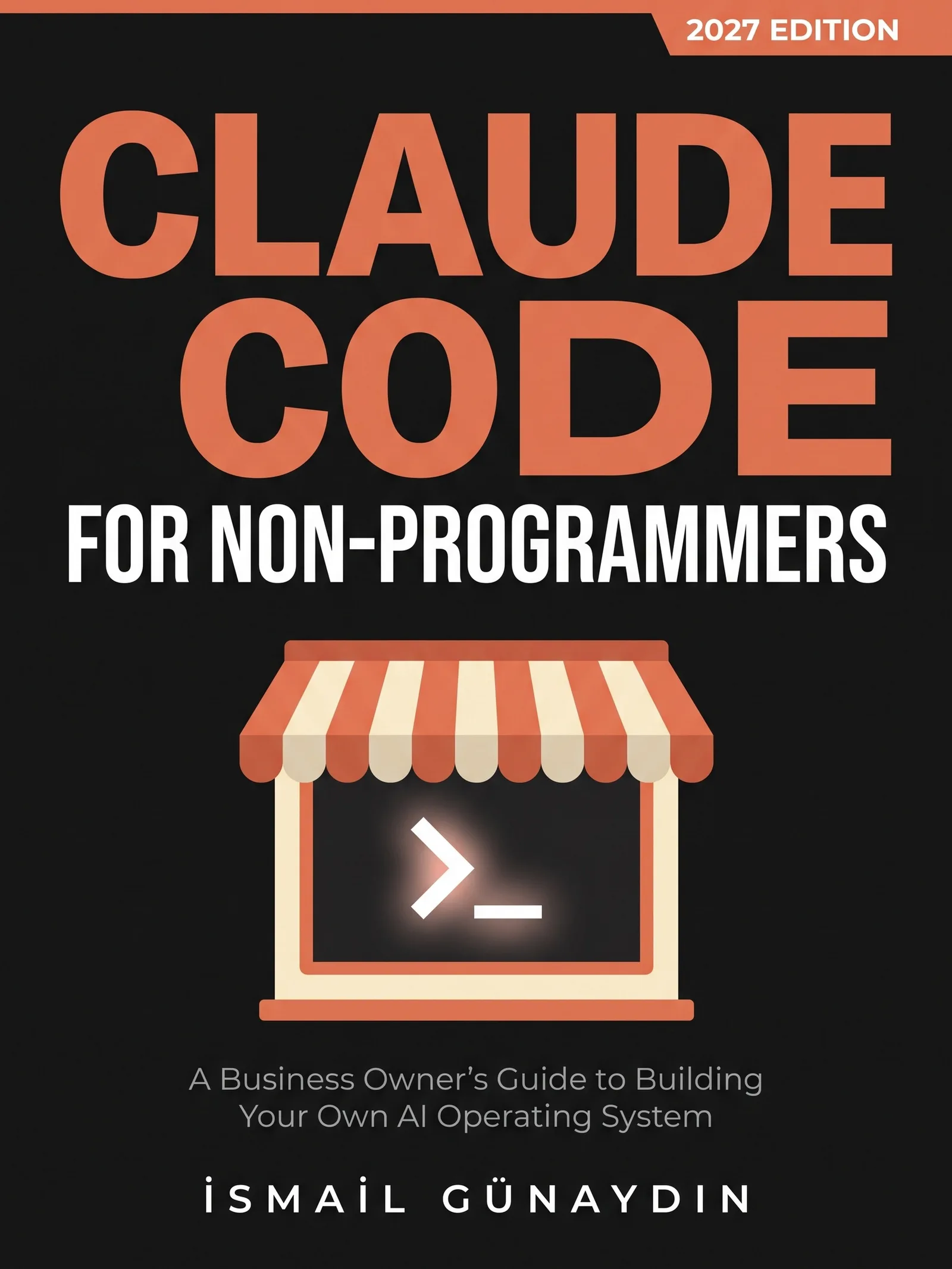
The book for this problem
Claude Code for Non-Programmers
A Business Owner's Guide to Building Your Own AI Operating System (2027 Edition). By İsmail Günaydın, 355 pages.
Where this problem is in the book:
- Automation
- Permissions and Modes
- Safety and Failure
Links go to Amazon. I wrote this book and earn a royalty on every sale. Amazon sets the price and handles delivery and returns.

Is Claude Code for Non-Programmers the right book for you?
Yes, if
- You have a weekly check you keep meaning to do and never do
- You want a morning briefing waiting for you before you sit down
- You already set up a job and aren't sure it still runs
Skip it if
- You want unattended jobs that send emails or change client files
- Your work lives in GitHub workflows; the book leaves those out
Fair doubts before you buy
Isn't it risky to let an AI work with nobody watching?
It is, if the job can change things. The book keeps unattended jobs to reading and writing one report, so the worst case is a wrong report, not a broken folder. Client records stay out of the job's folder, its prompt and its log.
Can't I just set it up once and forget it?
That is exactly how my jobs died. A scheduler can say a task is ready for weeks while nothing runs. The book's answer is a small watcher script that checks each job's result and report date, and drops an alarm in your inbox when either looks wrong.
Get Claude Code for Non-Programmers
A business owner who has never opened a terminal can give Claude real jobs on real files, safely, using one working system including the parts that broke.
Links go to Amazon. I wrote this book and earn a royalty on every sale. Amazon sets the price and handles delivery and returns.
This book is independent and is not affiliated with or endorsed by Anthropic.

Questions people ask about this
- Can Claude Code run automatically on a schedule?
- Yes. The official options are Routines, which run in Anthropic's cloud at most once an hour, Desktop scheduled tasks, which run while the desktop app is open and the computer is awake, and /loop, which repeats inside an open session. Routines are still a research preview.
- What does claude -p do?
- It runs Claude Code once without a chat. It takes your task, prints the answer and quits. It leaves an exit code, 0 for success and something else for failure, which is how a scheduler knows whether the job worked.
- Why is my scheduled Claude Code job not running?
- Common causes in the book: the task won't start on battery, missed runs aren't caught up, the job waits for a permission click nobody gives, or a folder it expects is missing. In Task Scheduler, Ready only means waiting. Check the last run time, the last result and the newest report's date.
- How long does a /loop last in Claude Code?
- Recurring loops expire after 7 days. A loop only fires while the session is open and idle, and it doesn't catch up on missed runs. For long-term jobs, use a Routine, a Desktop task or your computer's scheduler.
- Should I use --dangerously-skip-permissions for scheduled jobs?
- No, not on your own computer. The docs say to use it only in a container or virtual machine. For unattended jobs, decide permissions in advance with --permission-mode dontAsk and an exact allow list, or --permission-prompts none, so anything that needs approval is refused instead of waiting.
- Can a cloud scheduled task read files on my computer?
- No. The docs say a cloud task starts each run from a fresh copy of a GitHub repository you select, and has no access to local files. If your files live in a folder on your computer, use a desktop scheduled task, which runs in a local folder while the desktop app is open and the computer is awake.
Related problems
- How to make Claude Code ask before it changes your files
New Claude Code sessions start in auto mode and don't ask. The six modes in one table, how to make Manual your default, and the locks no mode can skip.
- Can you paste an API key or client data into Claude Code? Where secrets go instead
A pasted key is saved in a plain text file. Where keys and client records go instead, the deny rules that lock them, and what to do after a leak.
- The AI agent's report looks perfect. Should you trust it before you act?
Agent reports sound sure and are often wrong both ways. Why it happens, where invented facts hide, and a three-step check before you fix anything.
- Claude Code forgets everything each session. How do you make it remember?
You told it about the new supplier last week and today it uses the old one. Why each session starts fresh, how memory notes work, and the traps to avoid.
- Everything inside Claude Code for Non-Programmers
Every chapter, who the book is for, and every problem it helps with.